An email alias is an alternative email address that automatically forwards messages to a primary mailbox — without creating a separate inbox. It’s useful for creating role-based or public-facing addresses like support@yourdomain.com while keeping your personal mailbox private.
🔐 Step 1: Access the Email Control Panel
If you're not already logged in, follow this guide:
👉 How to Access Your Email Control Panel
✉️ Step 2: Go to the Email Section
-
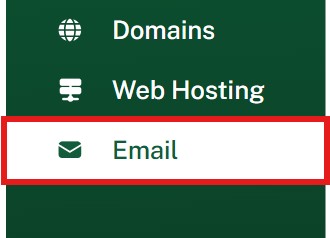
In the left-hand menu, click Email
-
Under the Mailboxes list, find the mailbox you want the alias to forward to

➕ Step 3: Create a New Email Alias
-
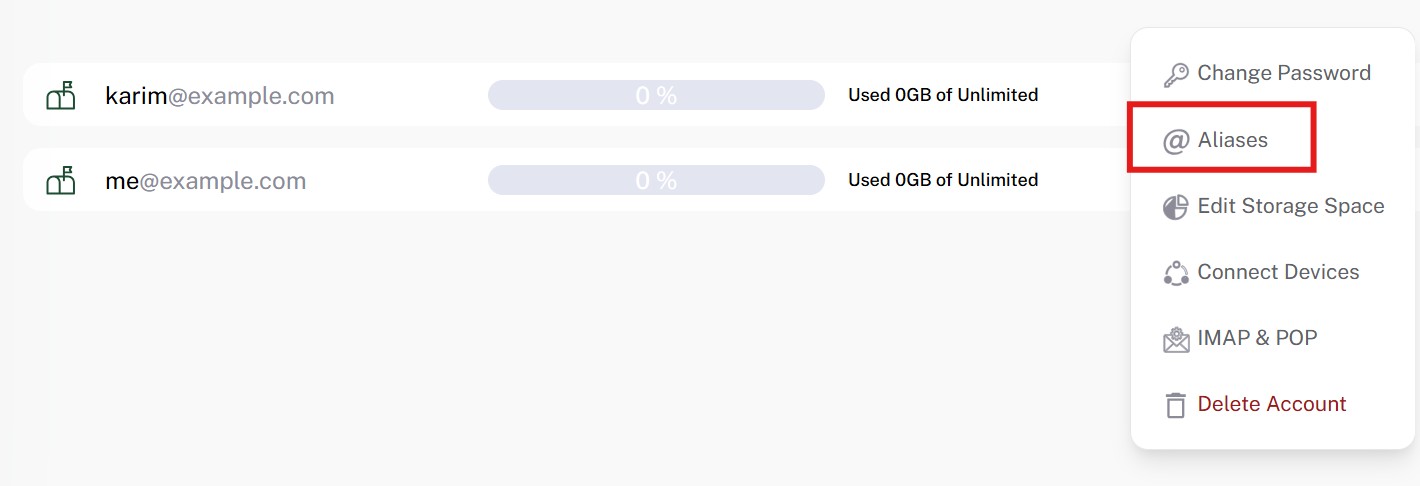
Click the three dots (⋮) next to the mailbox
-
Choose @Aliases from the dropdown
-
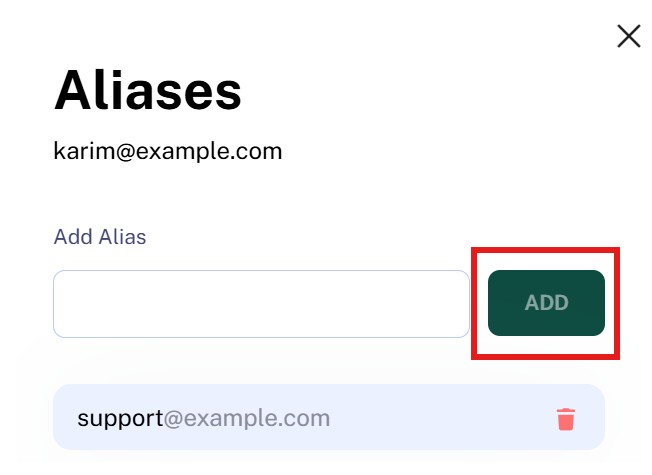
In the text field, enter the alias address (e.g.
support) -
Click Add to save the alias
✅ Test the Alias
Send a test email to your new alias (e.g. support@yourdomain.com) and make sure it delivers to the primary mailbox.
🧠 Good to Know
-
Aliases do not have their own inbox or login
-
You can add multiple aliases to the same mailbox
-
You can remove or update aliases from the same menu at any time