IMAP and POP are two common protocols used by email applications to download messages from your mailbox.
-
IMAP allows access from multiple devices and keeps messages stored on the server
-
POP downloads and removes messages from the server, typically used for single-device access
If you'd prefer users only access email via Webmail (or want to limit device syncing), you can disable both IMAP and POP login access for individual mailboxes.
🔐 Step 1: Access the Email Control Panel
If you're not already logged in, follow this guide:
👉 How to Access Your Email Control Panel
🧭 Step 2: Navigate to the Mailbox Settings
-
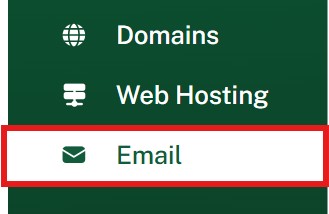
In the left-hand menu, click on Email
-
Locate the mailbox you want to modify
-
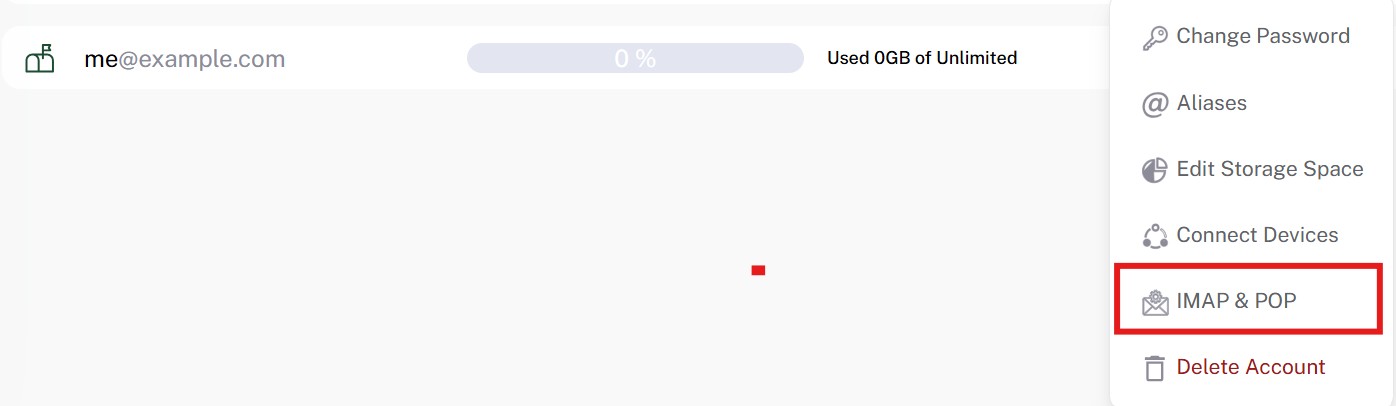
Click the three dots (⋮) next to that mailbox

✏️ Step 3: Open the IMAP & POP Settings
- From the dropdown menu, select IMAP & POP
❌ Step 4: Disable Access
-
Toggle the switches to turn IMAP and/or POP access OFF
-
Click Save to apply the changes
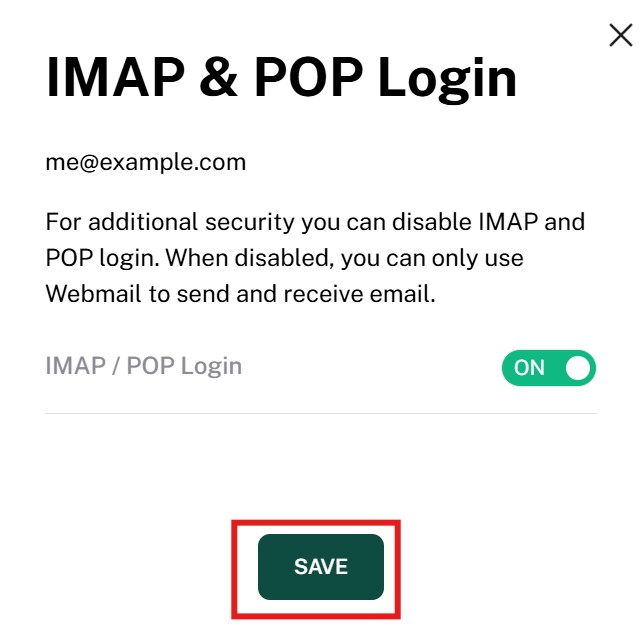
Once disabled, the mailbox will no longer be accessible from traditional email clients like Outlook, Thunderbird, or Apple Mail — but it can still be accessed via Webmail.
💡 Why Disable IMAP or POP?
-
Improve control over how email is accessed
-
Prevent use of personal devices for business email
-
Force all email activity through Webmail for security or monitoring